

Want to manage multiple online accounts, scrape data, or bypass geo-restrictions without getting flagged? Setting up proxies in GoLogin is the answer.
Proxies mask your real IP address, making it seem like you're browsing from a different location. Combined with GoLogin’s anti-detect browser, you can create distinct profiles with unique digital fingerprints for anonymity. Here’s how to do it:
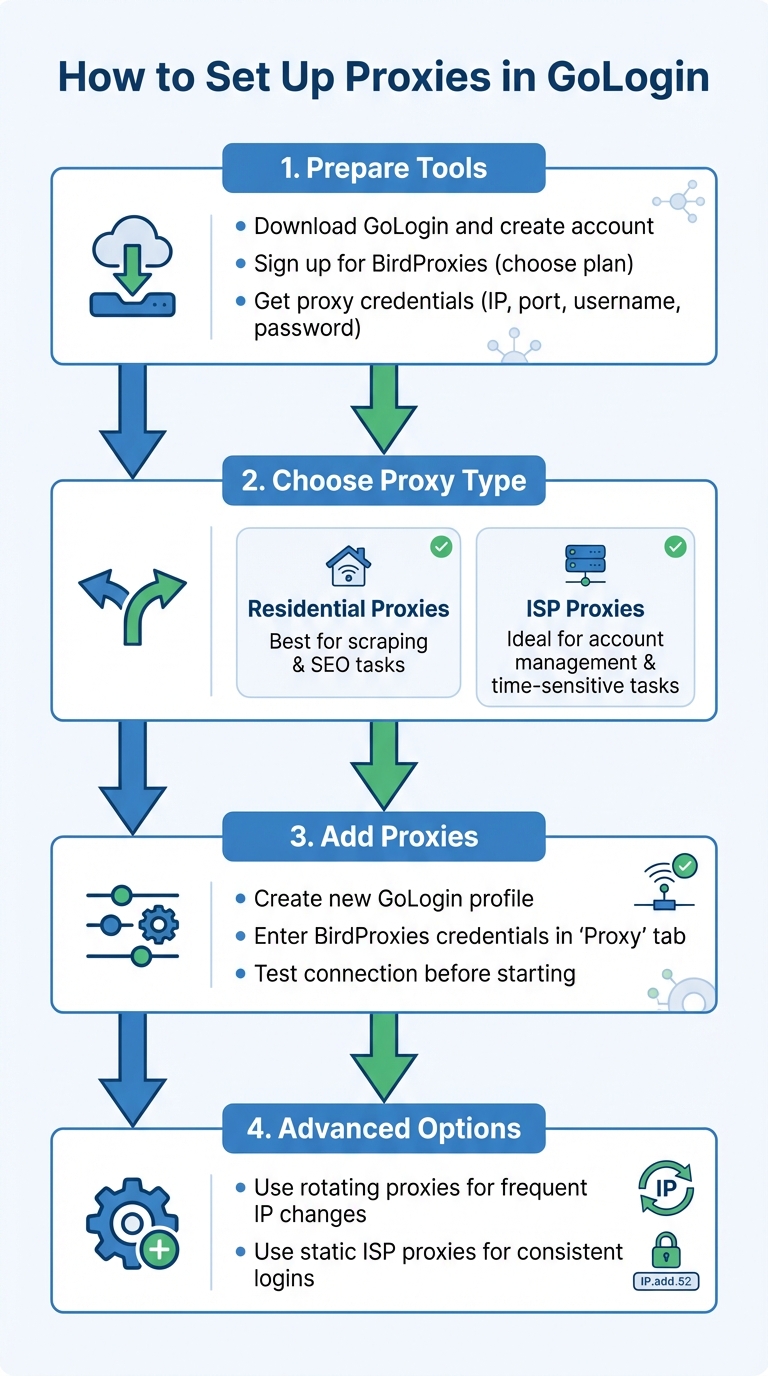
Quick Steps:
- Prepare Tools:
- Download GoLogin and create an account.
- Sign up for BirdProxies and choose a proxy plan (residential or ISP).
- Get your proxy credentials (IP, port, username, password).
- Choose Proxy Type:
- Residential Proxies: Best for scraping and SEO tasks.
- ISP Proxies: Ideal for managing accounts or time-sensitive tasks.
- Add Proxies:
- Create a new GoLogin profile.
- Enter your BirdProxies credentials under the "Proxy" tab.
- Test the connection and ensure it works before starting.
- Advanced Options:
- Use rotating proxies for frequent IP changes.
- Opt for static ISP proxies for consistent logins on sensitive platforms.
By pairing GoLogin with high-quality BirdProxies, you can ensure anonymity, prevent account bans, and improve efficiency for tasks like social media management or web scraping.
How to Set Up Proxies in GoLogin: 4-Step Configuration Guide
How to use proxies with GoLogin
What You Need Before Setting Up Proxies in GoLogin
Before diving into proxy configuration in GoLogin, make sure you have everything you need.
Tools and Accounts Checklist
Here’s what you should have ready:
- GoLogin Application: Download and install the GoLogin app on your device, and ensure you’ve created an active account.
- BirdProxies Account and Plan: Sign up for a BirdProxies account and choose a proxy plan that suits your tasks. Whether you need residential proxies for web scraping or ISP proxies for activities requiring speed and reliability, pick the plan that aligns with your goals.
- Proxy Credentials: Head to your BirdProxies dashboard to get your proxy details - IP address, port, username, and password. GoLogin works with both HTTP and SOCKS5 protocols, so double-check which protocol your proxies support.
- Bulk Import Option (Optional): If you’re working with multiple proxies, GoLogin’s bulk import feature can save you time by letting you add them all at once.
Once you’ve gathered these essentials, it’s time to choose the right type of proxy for your needs.
Understanding Proxy Types
Choosing the right proxy type is crucial for your specific tasks. Here’s a breakdown:
- Residential Rotating Proxies: Perfect for high-volume activities like web scraping, SEO tracking, and price monitoring. These proxies rotate through real user IPs, making your traffic appear genuine.
- ISP Proxies (Static Residential Proxies): Best for managing accounts on platforms like Facebook, Amazon, or eBay. They’re also great for time-sensitive tasks like sneaker copping or ticket purchasing, thanks to their stable and reliable connections.
- Datacenter Proxies: Known for their speed, these are ideal for less sensitive tasks like accessing geo-blocked content. However, they’re easier to detect, so they’re not suitable for everything.
- Mobile Proxies: Offering the highest trust scores, these proxies excel at bypassing strict filters. Keep in mind, though, they’re typically slower compared to other options.
Selecting the right proxy type ensures a seamless and secure online experience tailored to your specific needs.
How to Add Proxies in GoLogin
Once you've got your tools ready and selected the type of proxy you need, the next step is to integrate your BirdProxies credentials into GoLogin. Don’t worry - it’s a quick and simple process.
Create a New Profile in GoLogin
Start by opening the GoLogin app. At the top-right corner, you'll see the "Add Profile" button - click it. This will bring up a window where you can set up your profile. For better organization, name the profile based on its purpose. For instance, you might name it after the specific task it will handle.
Match the profile OS to your device. If you're using GoLogin on Windows, make sure the profile's OS is set to Windows. This step is crucial for avoiding detection by websites that check for inconsistencies between your browser fingerprint and your system's details.
Configure Proxy Settings
Head over to the "Proxy" tab in the profile setup window. Select "Your Proxy" to manually enter your BirdProxies credentials. You'll need to input the IP address, port, username, and password provided in your BirdProxies dashboard.
The formats you can use include:
192.168.0.1:8000:username:passwordsocks5://username:[email protected]:8000
Make sure to choose the correct protocol (HTTP or SOCKS5) that aligns with your BirdProxies plan. In most cases, GoLogin can detect this automatically.
Test and Run the Proxy
Before launching your profile, click the "Check Proxy" button to ensure everything is working. A green indicator means the connection is successful, while a red one points to an issue.
"GoLogin will check your proxy right away. You will see the green indicator if the proxy works properly, or the red one if it is not." - Alex B, GoLogin Support
If the test is successful, you'll see details such as your assigned IP address, its geolocation (country and city), the protocol being used, and the latency. Pay attention to latency - higher numbers may slow down your browsing experience.
Once you see the green light, click "Start" to activate the profile. To double-check, open the browser and search “what is my IP” to confirm that the proxy location matches your BirdProxies settings. This step ensures there are no IP leaks during your session.
After verifying your proxy, you're ready to move on to adjusting advanced settings in the next steps.
Advanced Setup Options for BirdProxies
Once you've got the basics of proxy setup down, it's time to explore advanced configurations that can fine-tune your proxy performance for specific tasks. With BirdProxies, you'll primarily work with two types of proxies: rotating residential proxies and static ISP proxies. Each serves unique purposes, depending on what you're trying to achieve.
Set Up Rotating Residential Proxies
Rotating residential proxies are designed to automatically change your IP address at regular intervals. This makes them a go-to choice for tasks like web scraping or e-commerce price monitoring. Since these proxies use real residential IP addresses, websites perceive your activity as coming from a regular home user rather than a bot.
To set up rotating proxies, log into your BirdProxies dashboard, retrieve your credentials, and input them into the Proxy tab. The standout feature of rotating proxies is their ability to cycle through different IPs. Typically, each IP remains active for 10–30 minutes before switching to a new one.
For tasks that require frequent IP changes, some providers include a "Change IP URL" field in GoLogin. This feature allows you to manually trigger an instant IP rotation without needing to restart your browser profile. If you're scraping websites with strict anti-bot defenses, consider using the SOCKS5 protocol instead of HTTP. SOCKS5 offers greater flexibility and reduces the risk of detection.
For scenarios where maintaining the same online identity is critical, static ISP proxies are a better fit.
Configure Static ISP Proxies
Static ISP proxies offer a consistent IP address, combining the speed of datacenter proxies with the credibility of residential ones. These proxies are perfect for managing accounts on platforms like Instagram, Ticketmaster, or e-commerce sites, where frequent IP changes could raise red flags.
To configure static ISP proxies, go to the Proxy tab in GoLogin, select Your Proxy, and input your ISP credentials. Depending on your BirdProxies plan, you can choose between HTTP and SOCKS5 protocols. After entering the details, click Check Proxy to ensure everything is working. A green indicator will confirm the activation.
The main advantage of static ISP proxies is their reliability. Since your account always logs in from the same IP, it helps establish trust with platforms that monitor login behavior. Additionally, BirdProxies offers free replacements if your ISP proxy gets banned, so you're never left with a non-functional IP. These proxies operate at speeds of 1 Gbps or more and boast 99.9% uptime, making them an excellent choice for time-sensitive activities like snagging tickets or managing high-value accounts.
sbb-itb-ea6392c
Fixing Common Proxy Problems
Even with everything set up correctly, you might still run into proxy issues while using GoLogin. To help you troubleshoot, GoLogin uses a color-coded system: green means your proxy is working, while red indicates a connection failure.
Problem and Solution Guide
Proxy errors often stem from incorrect credentials or mismatched protocols. If you see a red indicator, double-check your IP address, port number, username, and password. Also, confirm that you're using the correct protocol, whether it's HTTP or SOCKS5.
Another common issue involves software conflicts. For example, if you're running NordVPN with Threat Protection enabled, it might override your proxy settings and cause IP leaks. Simply turn off Threat Protection to solve this.
| Common Issue | Potential Cause | Recommended Solution |
|---|---|---|
| Red Indicator / Connection Failed | Wrong credentials or incorrect protocol (HTTP/SOCKS) | Re-enter IP, port, and credentials; confirm protocol with your provider |
| "Exceeded traffic limit" | Monthly data limit reached | Add more traffic or check your balance in the dashboard |
| "No Proxy found" | Server maintenance or local network block | Switch to a different network (e.g., mobile hotspot) or contact support |
| Proxy is slow or nonfunctional | Local interference or server congestion | Change the proxy IP/location or connect to a different network |
| Specific site won't load | Proxy IP blocked by the target website | Replace the proxy or try a different proxy type, like mobile |
| Geo-blocking / Wrong Location | Outdated or incorrect IP database | Verify your IP on a site like iphey.com and contact support for corrections |
These steps should help you resolve most common proxy issues and get your setup running smoothly.
Improve Proxy Performance
Once you've tackled the basic errors, you can fine-tune your proxy setup for better performance. The type of proxy you choose plays a big role here. Residential static proxies are ideal for tasks like e-commerce and social media management, as they provide stability for accounts. Mobile proxies, on the other hand, are excellent for bypassing strict security measures thanks to their high trust scores, though they may be slower. Avoid using datacenter proxies for sensitive tasks, as they are more likely to be flagged by anti-bot systems.
Before launching a profile, always click "Check Proxy." If you notice slow speeds, switch to a server closer to your target location to reduce latency and avoid triggering geo-fencing restrictions. For rotating proxies, make sure to input the "Change IP URL" from BirdProxies into the appropriate field to ensure proper IP rotation.
If you're dealing with a proxy that fails on certain sites or you've hit your monthly traffic limit, consider swapping proxies or adjusting your usage to stay within your allowance.
Best Practices for Using Proxies in GoLogin
Match Proxy Location to Your Task
When choosing proxies, make sure the IP location aligns with your target platform. For instance, if you're buying tickets on Ticketmaster or grabbing sneakers from Nike in the US, stick to proxies with US-based IP addresses. This helps avoid mismatches between your digital fingerprint and IP location, which can lead to account bans.
For platforms with stricter security, like Amazon, eBay, Instagram, or Facebook, residential static proxies from the appropriate region are your best bet for managing accounts long-term. If you need even higher trust levels, mobile proxies are an excellent choice for bypassing tough security systems. Just keep in mind that they might operate at slower speeds.
Monitor Usage and Rotate Proxies
Keep an eye on your proxy data through the "Buy Proxy" menu and replenish as needed. Use the "Proxies" page to monitor, edit, and organize your proxies efficiently. You can label them with comments and group them into folders to keep everything tidy.
For tasks involving heavy traffic, like web scraping, residential rotating proxies are ideal. You can utilize the "Change IP URL" feature to manage IP rotations effectively. To maintain anonymity, assign a unique proxy to each browser profile.
Use BirdProxies Features
Take advantage of BirdProxies' tools to get the most out of your proxies. With instant activation, you can get started right away. Their 24/7 dashboard allows you to generate credentials, track usage, and manage everything in real time. And if you run into connectivity issues, live chat support is available around the clock.
For added financial privacy, BirdProxies lets you pay with cryptocurrencies like SOL, USDC, USDT, and LTC. They also offer free replacements for banned ISP proxies, ensuring you don’t lose money if one gets flagged. Pricing is flexible, starting at $2.50 per proxy per month for ISP proxies and $3.50 per GB for residential proxies, making it easy to find an option that matches your budget and needs.
Conclusion
To set up proxies in GoLogin, start by creating a profile, inputting your proxy credentials, and testing the connection. By pairing unique proxies with GoLogin's fingerprint protection, you can assign distinct digital identities to each account.
This setup is essential for a variety of tasks - whether you're managing multiple e-commerce accounts, scraping data efficiently, or handling social media profiles. Residential static proxies offer long-term security for accounts, while rotating proxies make it easier to collect data without triggering blocks.
As GoLogin Support explains:
"A proxy is essential for most tasks you want to accomplish with GoLogin. Whether it is managing multiple social media accounts, web scraping, digital marketing or something else, it is impossible to break the link between your personal or work fingerprint without the proxy."
These points highlight the importance of a well-structured proxy setup. BirdProxies provides instant activation, dependable 24/7 access, and flexible pricing plans, including free replacements.
FAQs
What makes residential proxies better than ISP proxies in GoLogin?
Residential proxies operate using real household IP addresses, making them appear as if they belong to actual users. This natural behavior greatly lowers the risk of detection, making them ideal for tasks that demand high security, like managing multiple accounts or staying anonymous for extended periods.
On the other hand, ISP proxies are linked to internet service providers and may be flagged more easily in certain scenarios. Residential proxies shine in areas like social media management, web scraping, or bypassing geo-restrictions - situations where appearing authentic is crucial.
Why is my proxy connection showing a red indicator in GoLogin, and how can I fix it?
If you see a red indicator in GoLogin, it means the proxy connection has failed. Here’s how you can troubleshoot the issue:
- Check your credentials: Make sure the IP address, port, username, and password are entered correctly. Even a minor typo can disrupt the connection.
- Confirm the protocol: Ensure you’re using the right proxy type (HTTP, HTTPS, or SOCKS4/5). If it’s incorrect, update it accordingly.
- Inspect your network: Switch between networks, like moving from Wi-Fi to Ethernet, or try using a VPN to see if local network restrictions are causing the problem.
- Verify the proxy server: The server might be down or under maintenance. Use a proxy checker tool to confirm its status.
- Save and test again: After making adjustments, re-save your settings and test the connection. If the red indicator still shows up, reach out to your proxy provider for assistance.
These steps typically address most proxy connection issues in GoLogin.
What should I do if a website blocks my proxy IP?
If your proxy IP gets blocked, the first step is to switch to a new proxy or modify the protocol in your settings. Make sure all details - IP address, port number, username, and password - are entered accurately in GoLogin’s proxy settings. Use the built-in proxy checker to verify the status of the IP; a red indicator means it's blocked. If the problem continues, follow the troubleshooting steps to replace or rotate the IP until it functions properly. Regularly rotating IPs can help you stay anonymous and avoid detection.